
Guide
Sofia: the AI assistant for your software portfolio
Step by step with Sofia: ask questions about your portfolio, read results in the panel, export analyses as Excel, and let analyses run in the background.
5 min read · Juli 2026
Sofia is the platform's AI assistant. Instead of clicking through views and filters, you simply ask your question in the chat: "What might be duplicated in our portfolio?", "Show me our most expensive applications", or "How complete is our data?". Sofia checks your portfolio data, explains the result in plain language, and opens tables and analyses in the panel on the right.
All queries run read-only against your portfolio data — Sofia changes nothing unless you explicitly trigger it.
Step 1: Open Sofia
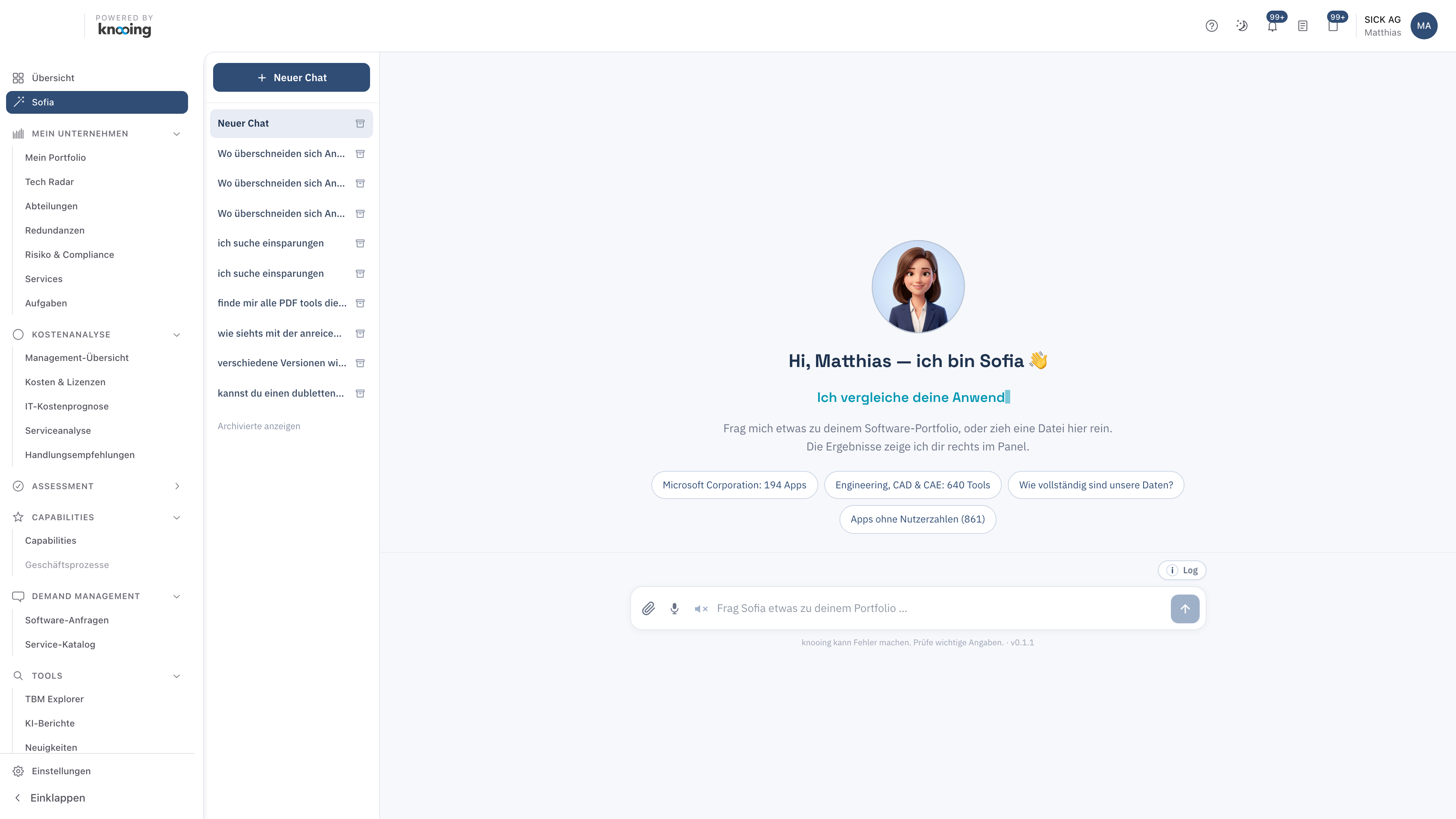
Click Sofia in the left navigation. You'll see the welcome message, the input field, and suggestion chips.
- 1Open Sofia in the navigation
- 2Suggestions from your real data
The suggestion chips are computed from your data: possible duplicates, apps without user numbers, notable vendor clusters. Clicking a chip asks the question immediately.
Step 2: Ask a question
Type your question into the input field ("Ask Sofia something about your portfolio…") and send it with Enter. Next to the input field are three more ways to interact:
- Paperclip: upload portfolio files (Excel, CSV, PDF, Word) — or simply drag and drop them into the chat. Sofia analyzes the file and suggests what can be imported.
- Microphone: voice input in conversation mode. Just speak — Sofia sends automatically after a pause, and you can interrupt her while she answers.
- Speaker: turn voice output on or off. Sofia will then read her answers aloud.
- 2Attach file · voice input · read aloud
Step 3: Read the answer
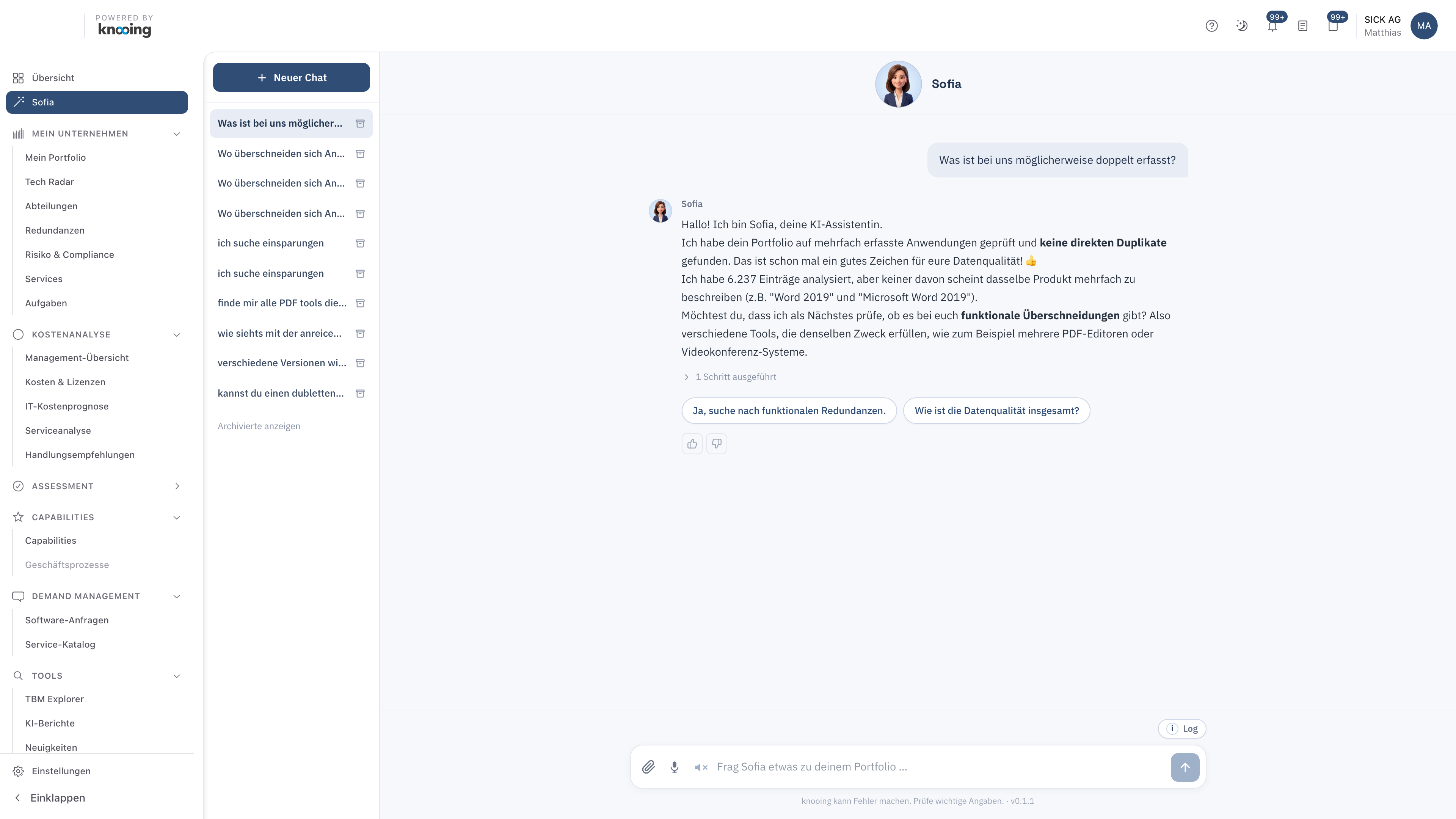
Sofia streams her answer live and shows exactly how she arrived at the result:
- 3Expand the executed steps
- •Ask a follow-up with one click
Three things are worth a look:
- Steps executed: the expandable strip under the answer shows which checks Sofia actually ran.
- Follow-up questions: below the answer, Sofia suggests fitting next steps as buttons — one click is enough.
- Feedback: thumbs up/down rates the answer and helps make Sofia better.
Step 4: Open results in the panel
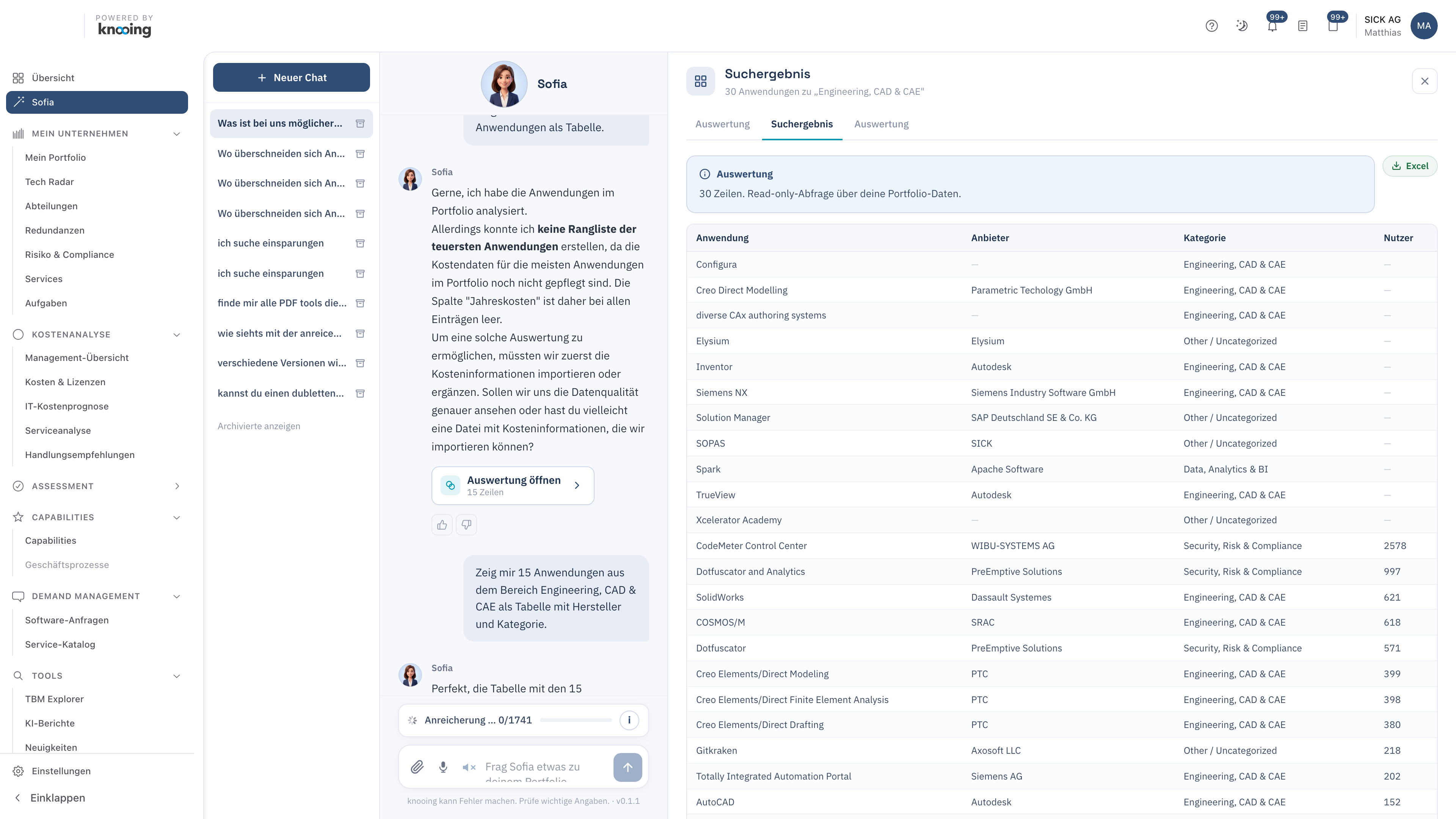
If a question yields structured results, Sofia attaches a chip to the answer — for example Open analysis. One click opens the panel on the right.
- 4Result chip opens the panel
- •Export table as Excel
The panel can hold several results at once — they appear as tabs in the header. Besides result tables, Sofia also shows redundancy analyses, app comparisons, app details, document previews, and the review view for file imports there. Every result table can be downloaded via the green Excel button.
Step 5: Let analyses run in the background
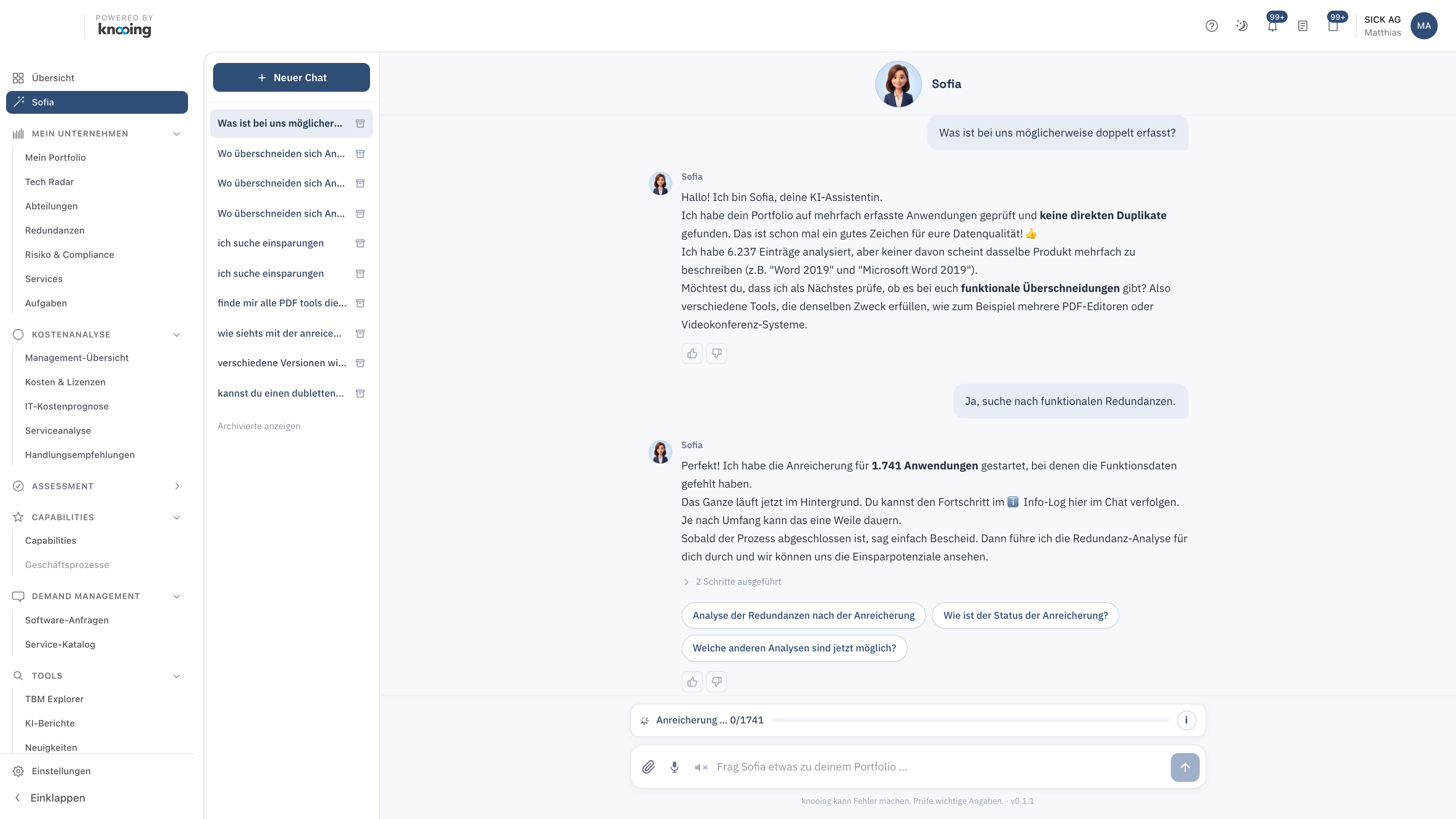
Some tasks take time — for example when Sofia enriches missing capability data for many applications. Such jobs run in the background; you can keep asking questions normally in the meantime.
- 5Progress runs in the background
Progress appears as an indicator above the input bar; the ℹ icon opens a log with details. Once the job is done, Sofia lets you know — and you can start the next analysis right away.
Chat history and archive
Every conversation is saved on the left in the sidebar and automatically gets a title. New chat starts a fresh topic; the icon next to each entry archives finished conversations — Show archived brings them back anytime.
What else Sofia can do
- Analyze and import files: upload Excel, CSV, PDF, or Word files. Sofia detects applications, checks for duplicates against your portfolio, and adds them after your approval.
- Costs and contracts: cost overviews, savings potential, upcoming contract renewals.
- Software research: Sofia searches the web for vendors matching a requirement and compares them against what's already in your portfolio.
- Watches: Sofia can set up watches, e.g. on expiring contracts.
Sofia can make mistakes — verify important information before basing decisions on it. This reminder is always shown below the input bar.